
ERP Data Migration from Excel: Moving Customers, Items, Balances and Stock Safely
How to migrate customers, items, suppliers, opening balances and stock from Excel or old software to an ERP safely: what to move, how to clean and map the data, trial imports with totals checks, and the cut-over day.
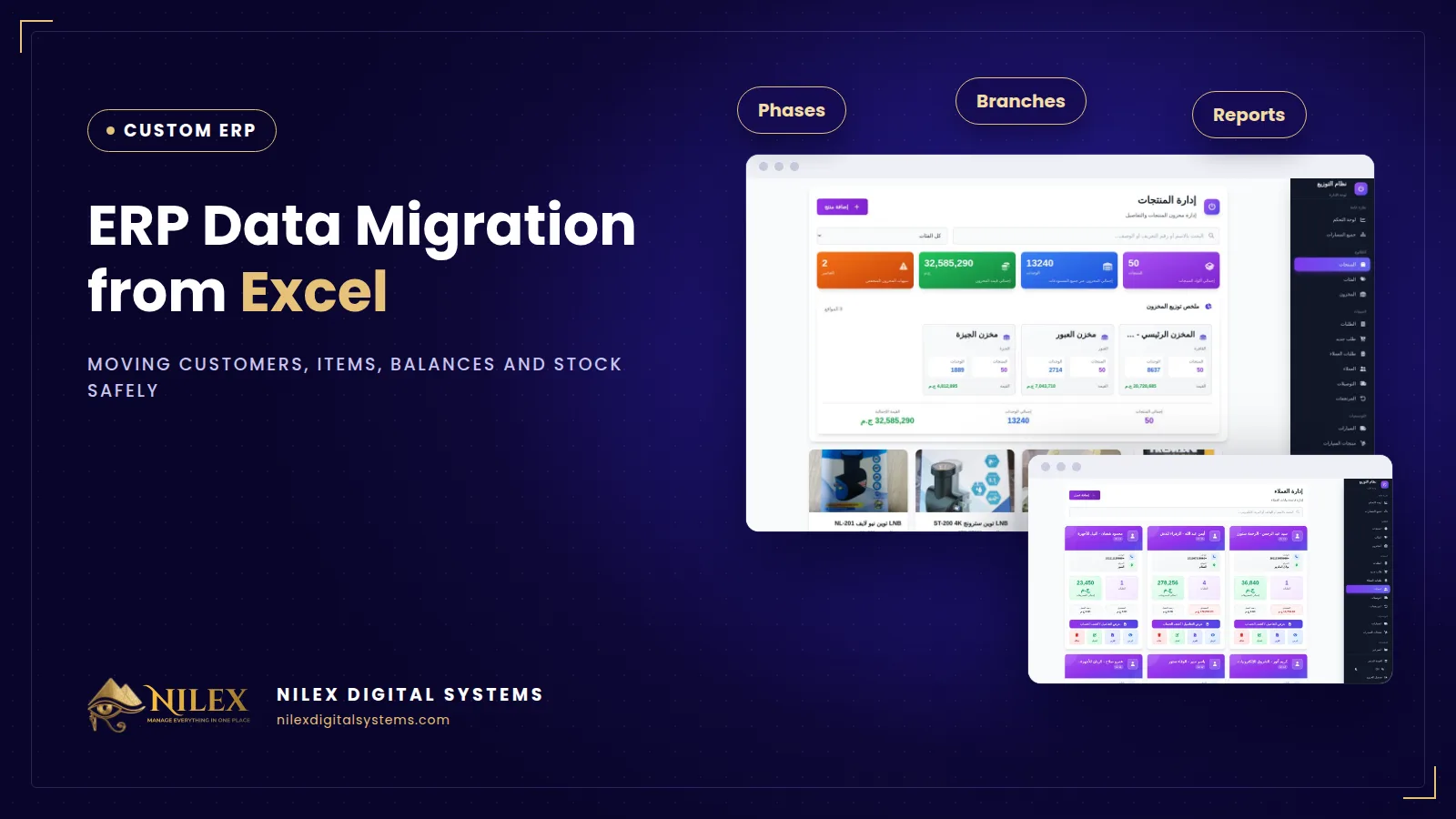
Migrating to an ERP from Excel or old software means moving four kinds of data: master lists (items, customers, suppliers), opening balances (what customers owe you and what you owe suppliers), opening stock per warehouse with its cost, and only as much history as you really need. Done safely, it follows four steps: clean the data, map it to the new system, run trial imports and compare totals, then move the final figures on one planned cut-over day.
Most ERP problems that appear in the first month are not software problems. They are data problems that were carried over: a duplicated customer, an item with two codes, a balance nobody had agreed. This guide shows how to avoid carrying them into the new system.
Key takeaways
- Move clean master data and agreed opening balances; leave old transactions in archived, read-only files unless you truly need them inside the system.
- Clean before you import. Errors imported "to fix later" are rarely fixed.
- Map every column of your sheets to a field in the new system, including units, categories and price lists.
- Run at least one trial import and compare totals: number of items, total customer balances, total supplier balances and stock value per warehouse.
- Cut over on a fixed date after a stock count, then freeze the old files.
What to move and what to leave behind
| Data | Usually comes from | Common problem | Rule |
|---|---|---|---|
| Items | Stock sheet, price list, old software | Same item under different names or codes; mixed units | One code per item, one base unit, clear categories |
| Customers | Sales sheet, salesmen's phones | Duplicates, missing phones, shops recorded under the owner's name | One record per customer, with branch or area |
| Suppliers | Purchases sheet, accountant's files | Balances that differ from the supplier's statement | Agree the balance with the supplier before import |
| Opening balances | Customer and supplier sheets | One lump figure with no invoice detail | Decide: open invoices, or one opening balance per account |
| Opening stock | Last stock count | Quantities without cost; stock in transit forgotten | Quantity and cost per item per warehouse, from a fresh count |
| Old transactions | Years of sheets | Inconsistent formats | Archive read-only; import only if a report really needs it |
Step 1: Clean before you move
Give one person in sales, one in the stores and the accountant a week to go through their lists. The usual clean-up work is:
- Duplicates: merge customers and suppliers that appear twice with slightly different names or phone numbers.
- Item names and codes: one code per item, a consistent naming pattern (brand, model, size) and no free-text notes inside the name.
- Units: decide the base unit (piece, kilo, metre, carton) and the conversion to larger packs.
- Inactive records: customers who have not bought in years and items you no longer sell can be left out, or imported as inactive.
- Missing data: phones, addresses, tax registration numbers where you need them on invoices.
If you issue e-invoices, the item codes registered for the tax authority's system should be part of the item data from the start. Our guide to e-invoice integration and item codes explains why.
Step 2: Map your columns to the new system
The developer should give you an import template, one sheet per data type, with the required fields marked. Mapping means deciding where each of your columns goes:
- Your "category" column becomes the item category; your "notes" column may become nothing.
- Old codes are kept in a reference field, so people can still search by the code they remember.
- Price columns become price lists: retail, wholesale, or per branch.
- Customer areas or sales reps become fields you can filter reports by later.
Anything that does not fit the template is a question to answer now, not on go-live day.
Step 3: Trial runs and checking totals
Import into a test version of the system, never straight into the live one. Then check totals, not just a few random records:
- The number of active items, customers and suppliers matches your cleaned lists.
- Total customer balances equal the figure the accountant agrees today.
- Total supplier balances equal the agreed figure, and the largest suppliers match their own statements.
- Stock quantity and value per warehouse match the last count.
- A few customers' statements, printed from the new system, look exactly like what you would send them.
Fix the source sheets, re-import and check again. Two or three rounds are normal. For how customer statements should look once you are live, see our guide to customer statements and collections.
Step 4: The cut-over day
Choose a date, usually the start of a month, and work back from it:
- A few days before: stop creating new items and customers in the old files, or log every new one.
- On the date: count stock in every warehouse and record goods still on vans or in transit.
- Agree final customer and supplier balances as of that date.
- Import the final figures, check the same totals as in the trial runs, and sign off.
- From that day, all new work goes into the ERP and the old files become read-only.
Common mistakes to avoid
- Importing everything, including ten years of messy history, and slowing the whole project.
- Opening stock without cost, which makes every margin report wrong for months.
- Running the old sheets and the new system in parallel for too long, until nobody knows which one is right.
- Migrating in the busiest season, when nobody has time to check the numbers.
Migration is one phase of a larger plan; see how a custom ERP project runs from discovery to go-live. If you are not sure you are ready to leave spreadsheets, read the signs your company has outgrown Excel.
How Nilex helps
For Nilex's ready wholesale distribution and warehouse management system, we import your products, prices, customers and opening balances from Excel during setup. When we build a custom ERP, it is designed around your own suppliers, customers, orders, branches and stock, and every action by every user is recorded in the audit log, so corrections made after go-live are visible rather than silent. Send us samples of your current sheets and talk to Nilex about how your data would move.
Frequently asked questions
Should we import all our old invoices?
Usually not. Import open invoices or opening balances, and keep closed history in archived files. Import history only if a specific report needs it.
How long does data cleaning take?
It depends on the size and state of your lists. Plan it as a task with an owner and a deadline, not as something done the night before go-live.
What if a customer disputes the opening balance?
Agree it before the cut-over date where possible. If not, import the figure you can support and record the dispute, so the correction later is a visible entry.
Can we move data from old accounting software, not Excel?
Usually yes, by exporting it to Excel or CSV first and then following the same clean, map and test steps.
 The Roastery Production Calculator: Planning Roasts and Blends From Customer Orders11 October 2026 · 9 min
 Running Several Coffee Factories or Roasteries From One System: Factory Dashboard and Stock per Site11 October 2026 · 8 min
 Sales Rep Portal and Online Requests From Shops: How Distributors Take Orders Without Paper11 October 2026 · 10 min