
Starting Online Orders for Your Supermarket: A Practical Launch Plan, Decision by Decision
A step-by-step plan for a supermarket going online: which products to load first, the weight rules, delivery areas and slots, a written substitution policy, payment, the daily order routine and the reports to read after launch.
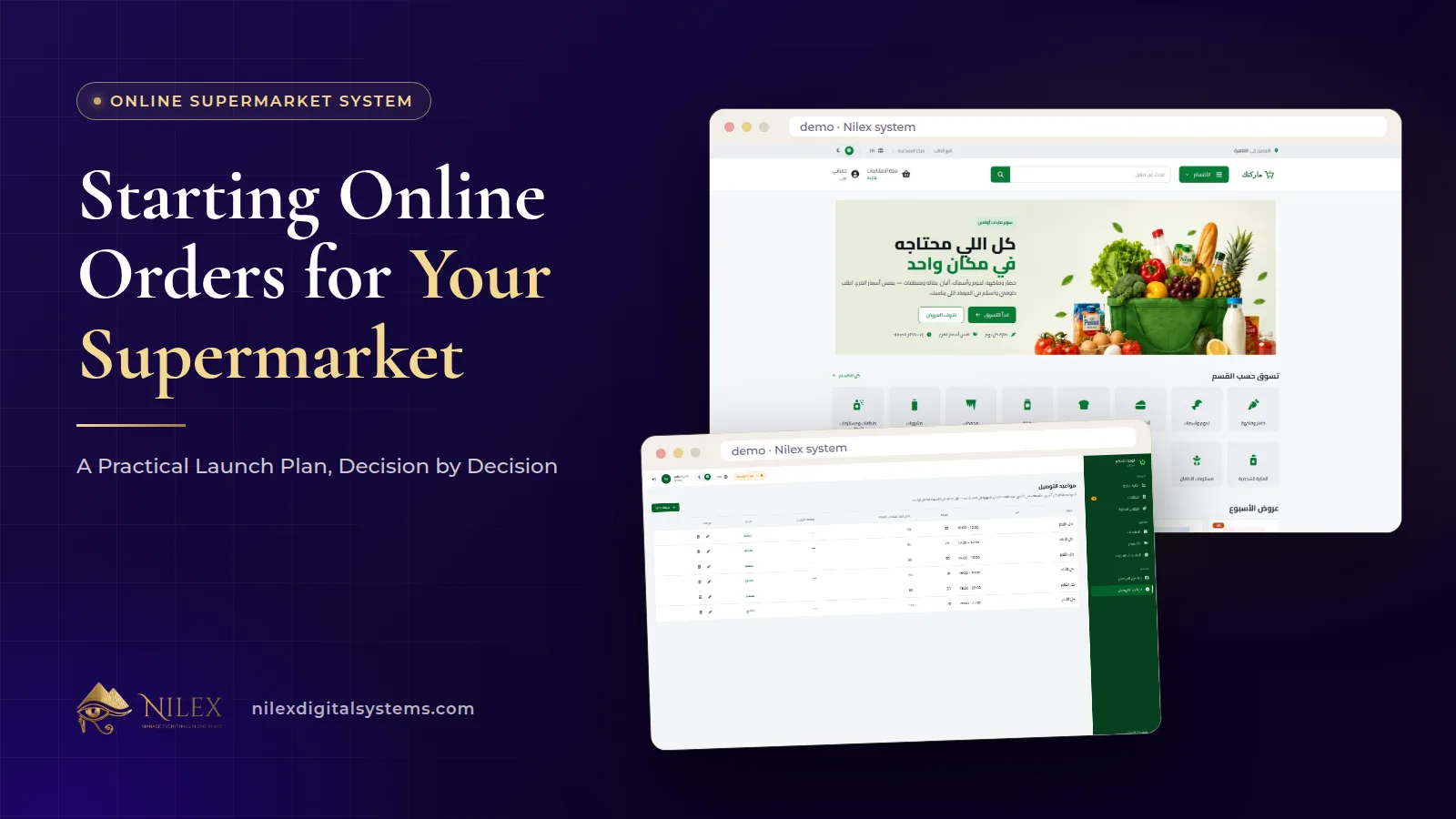
To start online orders for a supermarket, take seven decisions in order: which products go online first, how each one is sold (piece, weight or volume), which delivery areas you serve and on what terms, which time slots you open and how many orders each can take, what happens when an item is missing, how customers pay, and who in the shop handles each order stage. Once those are written down, setting up the store is mostly data entry and training.
Most supermarkets that struggle online did not choose the wrong software; they launched before these decisions were made, and then improvised them on the phone with every customer. This plan follows the order in which the decisions depend on each other, and shows where each one lives in a grocery system such as our Online Supermarket & Grocery Delivery System.
Key takeaways
- Launch with the products your regular customers already buy every week, not the whole shop.
- Delivery areas and slot capacity come from your real drivers and pickers, not from what competitors promise.
- Write the substitution policy before launch; the customer's choice in the basket only works if the team follows the same rule.
- Start with cash on delivery and e-wallet / InstaPay; online card payment, Excel import, a mobile app, POS integration and several branches are extras added in the higher plans.
- Give each order stage an owner on day one, and read the order and revenue reports every week for the first month.
Step 1: Decide the scope of the first launch
Before photos, prices or drivers, decide three things: which branch fulfils online orders, which neighbourhoods you will deliver to first, and which departments go online. A narrow first launch is not a weakness. A store that delivers reliably to four areas earns repeat customers; a store that accepts orders from the whole city and arrives late loses them in the first week.
If you run more than one branch, start with one. Several branches, each with its own stock and delivery areas, are part of the Chain plan and are set up as custom work; the single-store setup is the right place to learn how your customers order. Our guide to multi-branch systems explains what changes when you add branches later.
Step 2: Build the first wave of the catalogue
The catalogue is usually the longest part of any grocery launch, so split it into waves. The first wave is what a family buys every week: bread, milk, eggs, rice, oil, sugar, tea, vegetables, fruit, cleaning basics. Add the long tail after launch, when you can see what people search for.
For every product the system needs more than a name and a price. The product form in our system holds:
- Arabic and English names, so the store reads naturally in both languages.
- Barcode, brand, category, unit and net content (for example 1 litre or 500 g).
- Storage type, so customers can filter chilled and frozen goods.
- The price, and a sale price with a start and end date, so each offer runs for a set period.
- Stock and a low-stock alert, and several images.
Collect this in one sheet per department before you start uploading. In the Single Store plan we upload your products with your logo and colours as part of the setup; bulk import from Excel by your own team is added in the Growing Store plan. Either way, a clean sheet saves days. Our store launch checklist covers product photos and policies in more detail.
Step 3: Set how each product is sold
Each product is sold by the piece, by weight or by volume, with a quantity step (for example a quarter kilo) and a maximum per order. Decide these per department, not per product, and you will finish in an afternoon: loose vegetables by weight with a quarter-kilo step, packed goods by the piece, bulk oil or milk by volume where you sell it that way. Set a maximum on items you cannot restock quickly or on offers you do not want one customer to empty.
Weighed items are confirmed at the actual weight when the order is picked, so tell your pickers how to record it from the first order. The full reasoning behind units, steps and actual-weight confirmation is in selling groceries by weight online.
Step 4: Draw delivery areas and plan slot capacity
Each delivery area has its own fee, minimum order and free-delivery threshold. Customers pick their area at checkout and book a day and a time slot; each slot has a capacity and closes by itself when full. That makes capacity the number to get right, because it is the promise you make to every customer who books.
Work it out from your people, not your ambitions. An illustrative example: if two drivers can each complete about five deliveries in a two-hour window in your area, the slot capacity starts at ten orders, minus a margin for traffic and late picking. Run that for two weeks, then raise it if drivers come back early. How fees, minimums and free-delivery thresholds interact is covered in grocery delivery zones and time slots, so this plan only adds the order of work: areas first, then fees, then slots.
Step 5: Write a one-page substitution policy
In the basket the customer chooses what happens if an item is out of stock: call me, replace it with something similar, or remove it. The system records the choice; your team still needs a shared rule for what "similar" means. Write it on one page and give it to every picker:
- Same product, different size: allowed only if the total price is close to the original.
- Same type, different brand: allowed for staples, not for baby food, medical or dietary products.
- When in doubt, call, even if the customer chose "replace".
- Record every substitution in the order's internal notes.
This is an example policy, not a rule the system imposes; adjust it to your customers. The picking side, and how to reduce substitutions before they happen, is in grocery substitutions and order picking.
Step 6: Choose payment methods for day one
The core store takes cash on delivery and e-wallet or InstaPay transfers with their reference number. For most neighbourhood supermarkets that is enough to launch, because it matches how customers already pay the delivery boy. Online card payment is added in the Growing Store plan as an integration. If you are deciding whether you need cards at all, read adding card payment to a cash-on-delivery store first.
What the core store includes and what is added
| Need | Core store (Single Store plan) | Added in a higher plan |
|---|---|---|
| Arabic and English storefront | Included | — |
| Selling by piece, weight or volume | Included | — |
| Delivery areas and time slots | Included | — |
| Cash on delivery and e-wallet / InstaPay | Included | — |
| Product count | Up to 3,000 products | Unlimited (Growing Store) |
| Online card payment | Not included | Growing Store, as an integration |
| Bulk import from Excel | Not included | Growing Store |
| Staff accounts with permissions | Not included | Growing Store |
| Several branches, Android and iOS app, POS or ERP integration | Not included | Chain plan, as custom work |
The plans and their prices are on the system page.
Step 7: Give every order stage an owner
In the admin panel every order moves through pending, confirmed, picking, out for delivery and delivered. The time of each change is recorded, with the payment status and internal notes. Decide before launch who moves the order at each stage. In a small shop one person may confirm and pick; in a bigger one the stages belong to different people. A simple routine for the first weeks:
- Check new orders at fixed times (for example at the start of each slot) and confirm or call.
- Pick in slot order, confirming weights and substitutions as you go.
- Mark "out for delivery" only when the driver leaves, so the recorded times stay honest.
- Mark "delivered" and the payment status when the driver returns with the cash or the transfer reference.
Because the time of every stage is recorded, you can later see where orders wait: before picking, or on the road.
After launch: what to read in the first month
The dashboard and financial reports show revenue, orders, average order value and orders by status. In the first month, read them weekly with three questions in mind:
- Orders by status: are orders getting stuck in one stage? That is a staffing problem, not a software one.
- Average order value: is it close to your minimum order in some areas? Then the minimum or the free-delivery threshold may need adjusting.
- Low-stock alerts: which items run out repeatedly? Those cause most substitutions.
Then add the second catalogue wave, and consider a weekly offer using sale prices with start and end dates. Lessons from real store launches are collected in online store launch lessons from Egypt.
How Nilex helps
Our Online Supermarket & Grocery Delivery System is built around these decisions: weight-based selling, delivery areas with fees and minimums, slots with capacity, substitution choices and clear order stages. We deliver it with your logo, colours, departments, products and delivery areas, and train your team before launch. The store is server-rendered with structured data for a grocery store, so search engines can read it.
- See the screens, the modules and the plans on the system page, and use its form to request the system or a similar one.
- If you need a general online store rather than a grocery one, see our e-commerce store service.
- To talk through your areas and catalogue first, contact us.
For the full picture of what the system covers, start with online supermarket system in Egypt.
Frequently asked questions
How long does it take to launch?
Usually two to three weeks, depending on how many products need to be uploaded with their photos.
Do I need a mobile app to start?
No. The store works on mobile and desktop in the browser, in Arabic and English. An Android and iOS app is part of the Chain plan and is built as custom work.
Do customers have to create an account?
No. Customers can order as guests. An account keeps their orders and saved addresses, so weekly customers do not have to type their address every time.
Can the store connect to my cashier system?
Integration with your POS or ERP is part of the Chain plan and is quoted as custom work, because every cashier system is different. The core store keeps its own stock and low-stock alerts.
Can I start with one delivery area?
Yes. Start with the areas your drivers already know, each with its fee, minimum order and free-delivery threshold, and add areas from the admin panel when you are ready.
 Online Legal Bookshop Case Study: How Dar El Ahram Sells 800+ Legal Titles Online11 October 2026 · 11 min
 Selling Online From Egypt to Other Countries: Shipping Prices per Country, Local Zones and Card Payment11 October 2026 · 8 min
 More Than a Store: Author Applications, Events, a Legal Questions Section and QR Flyers on a Publisher's Website11 October 2026 · 8 min